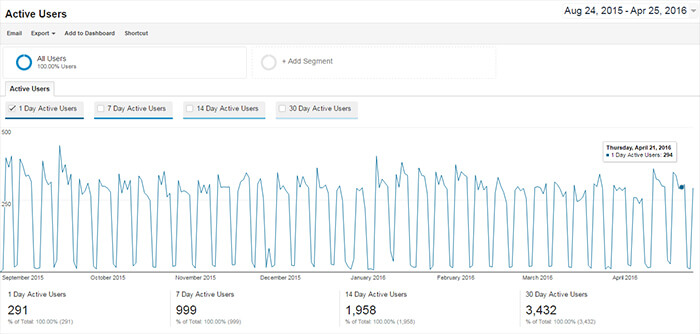
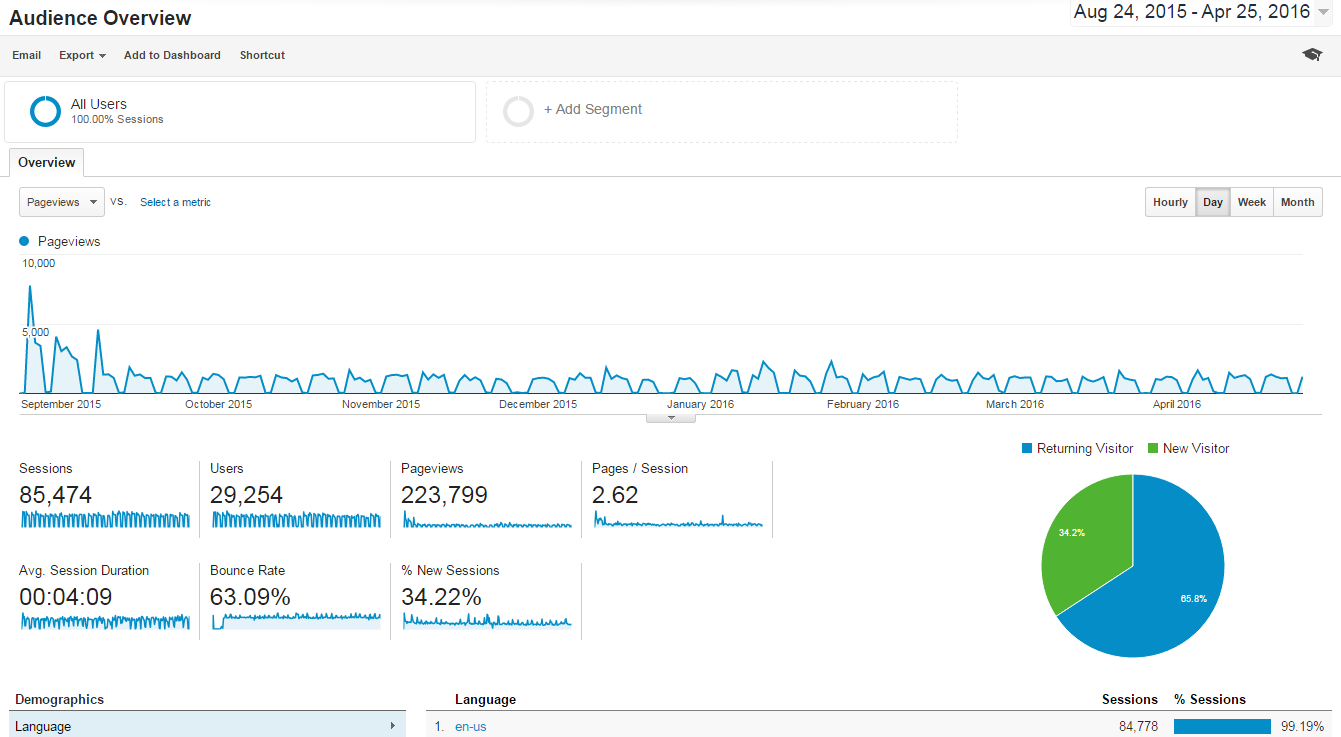
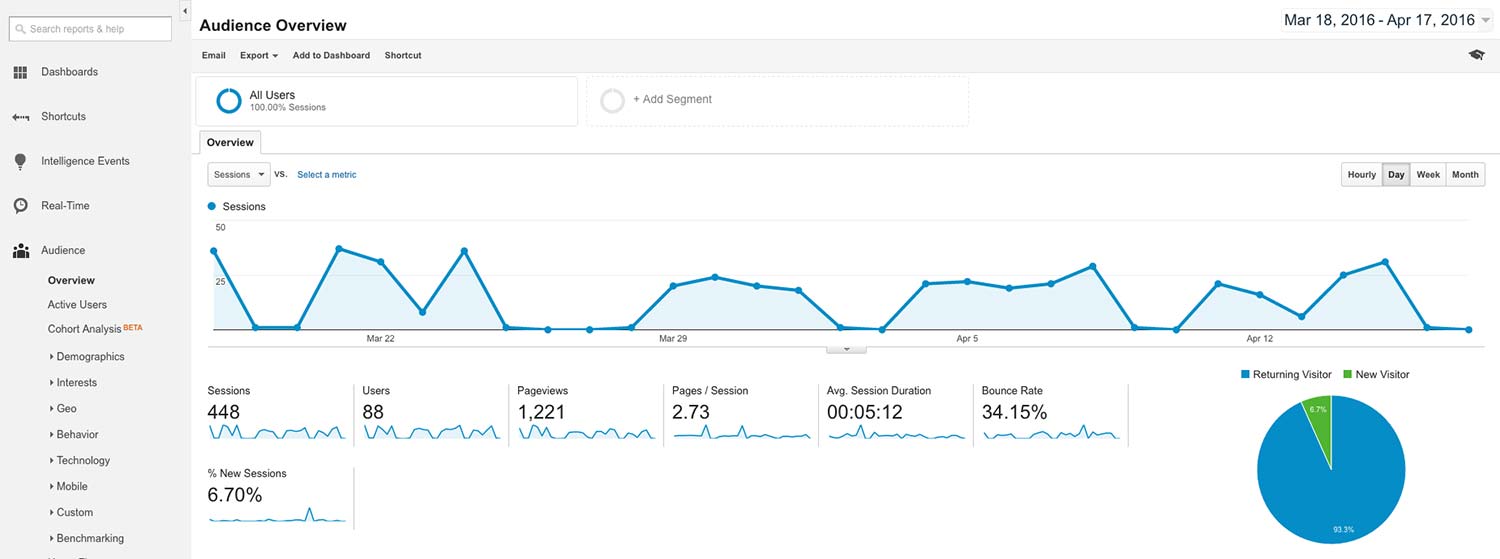
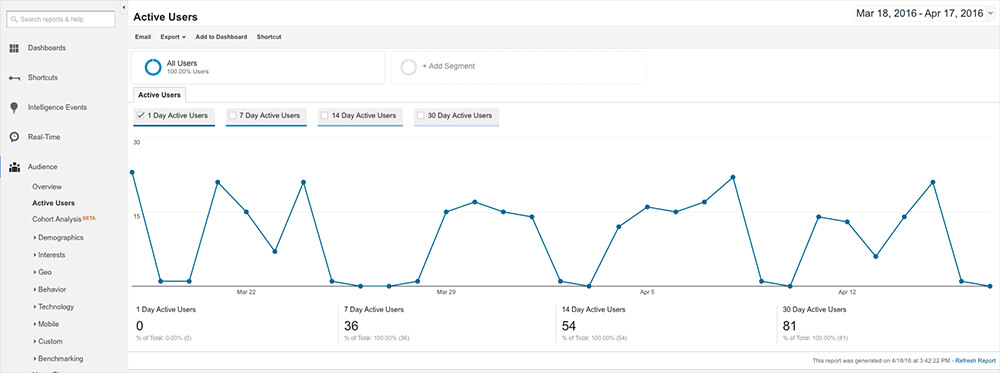
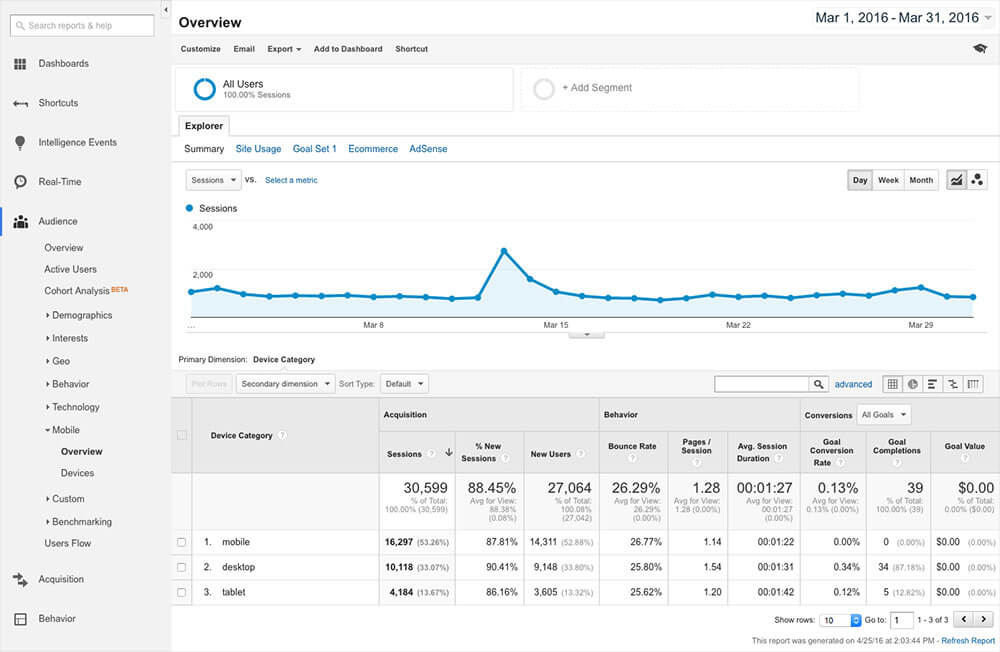
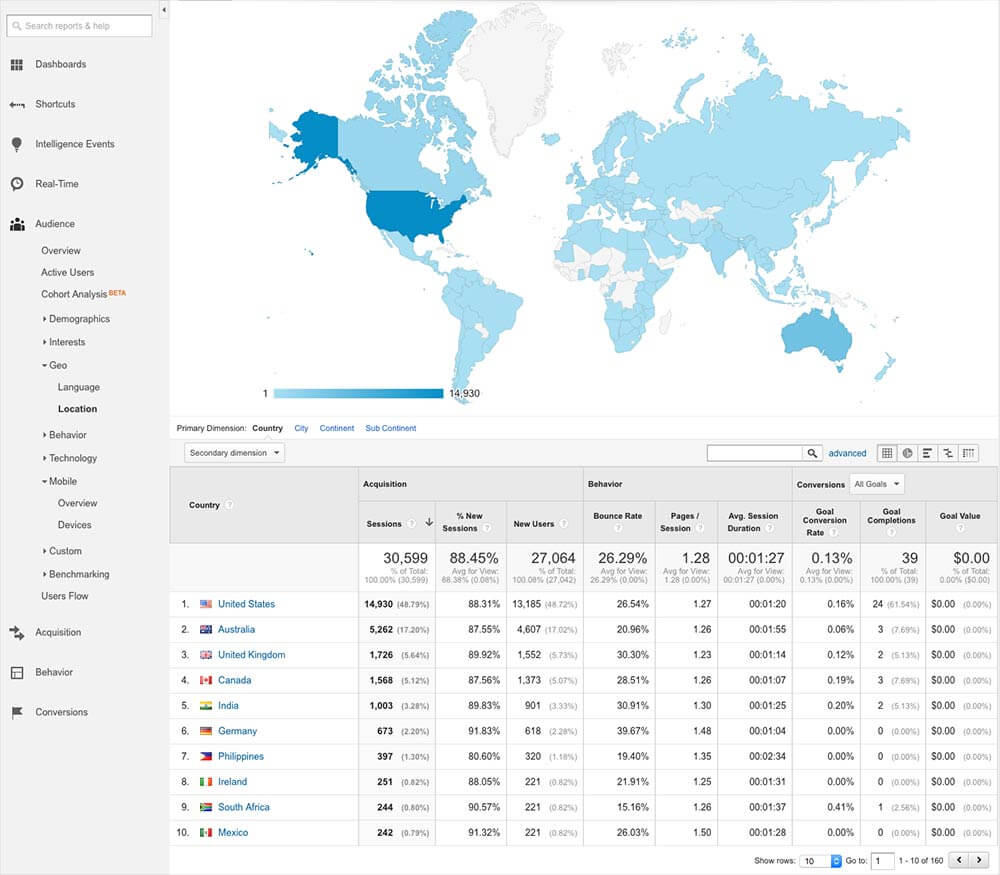
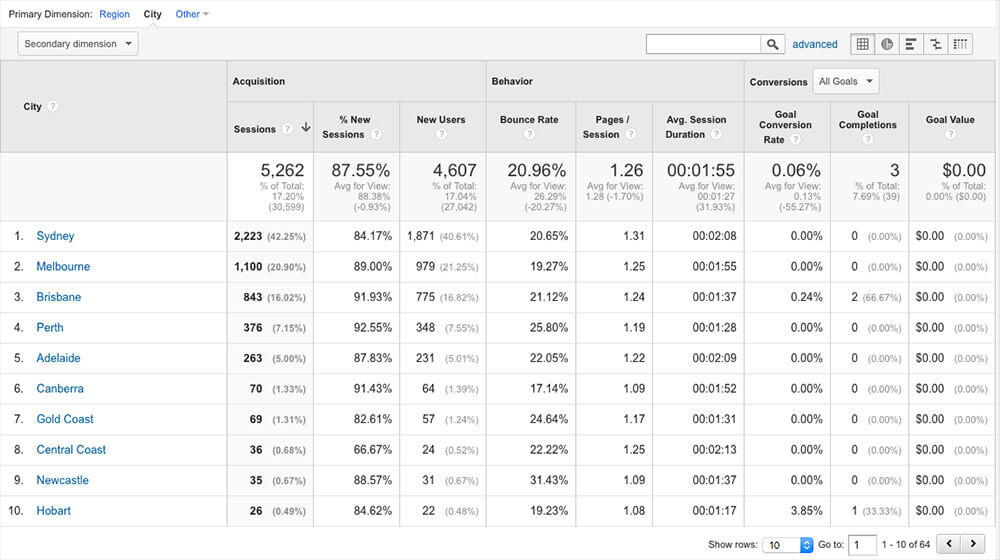
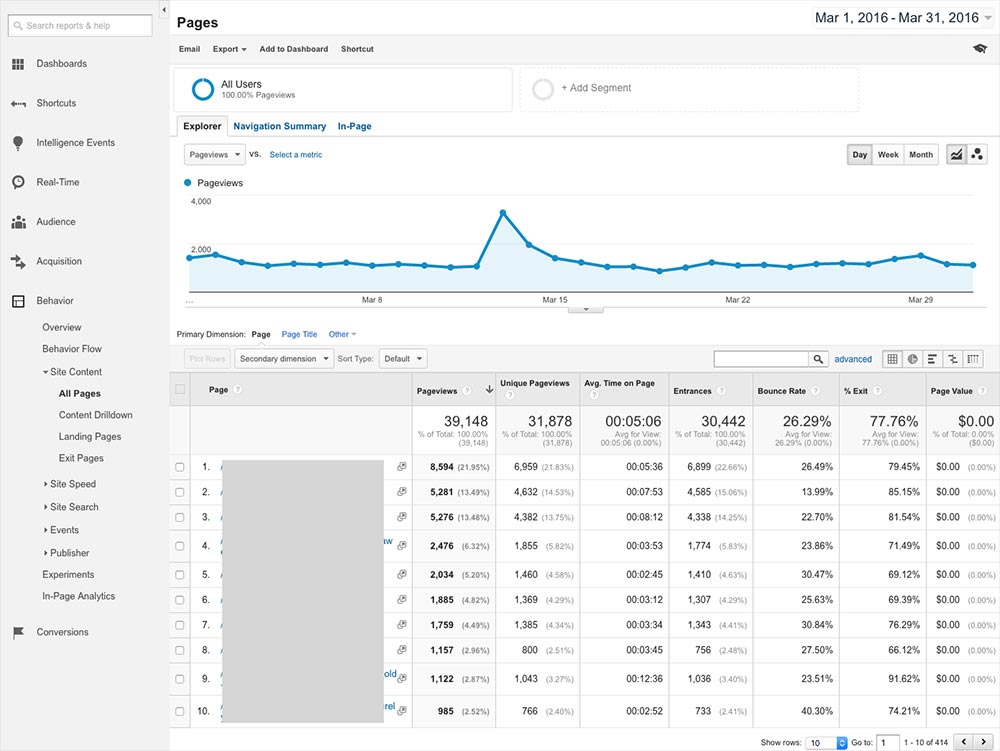
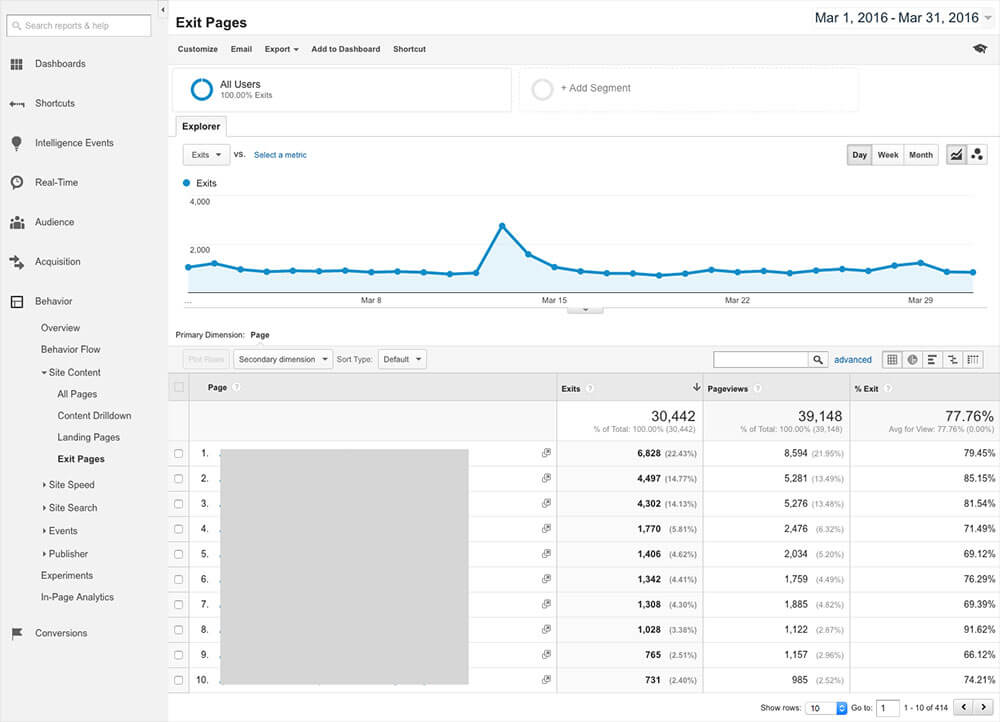
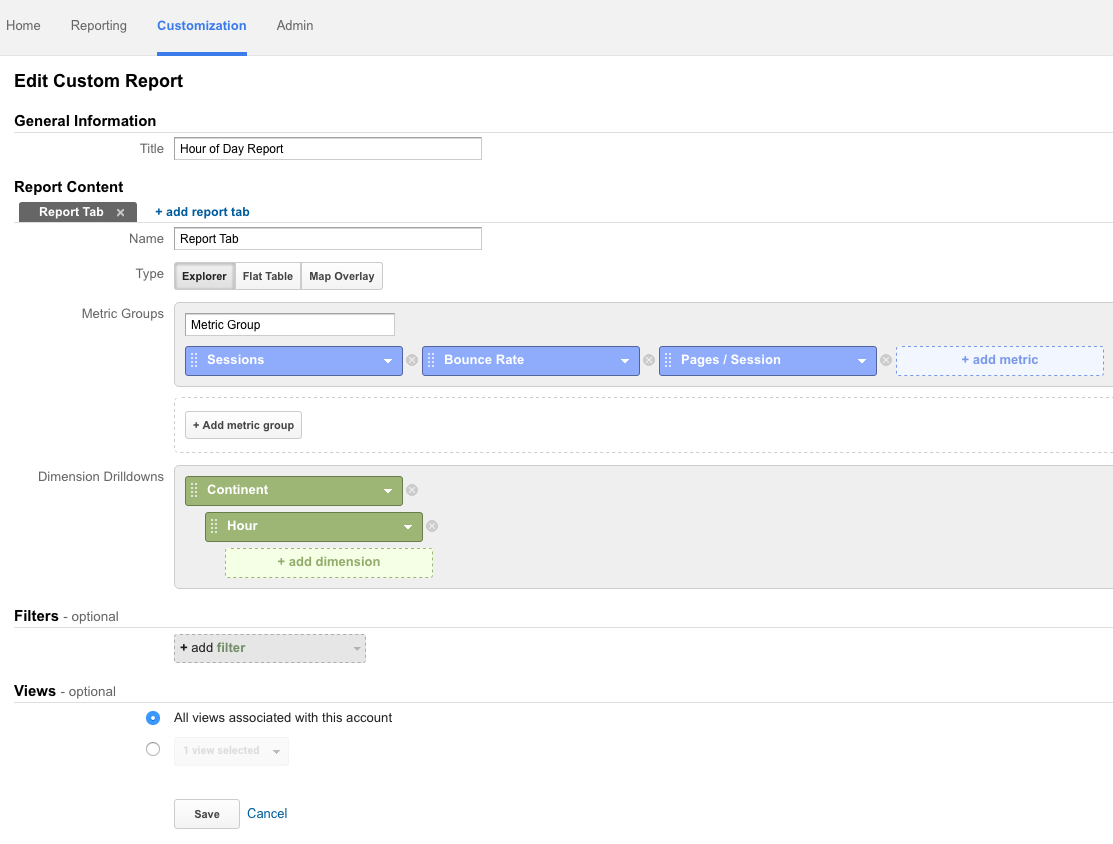
Your new intranet is in place and staff are starting to use it. Now it’s time to investigate what, when and how they are using it with the help of an intranet report.

In this post we’re going to quickly review the main Google Analytics reports that will allow you to clearly benchmark intranet effectiveness
(Note: You’ll need to have Google Analytics setup and installed on your intranet.)

Google Analytics has hundreds of different reporting options, so there’s many to choose from when conducting an intranet health check. We’re going to focus on two main areas:

  1. How they’re accessing
  2. What they’re accessing

For more in-depth information on what to measure, why and how i.e. tools you can use to conduct your intranet report, consult our Intranet ROI calculator

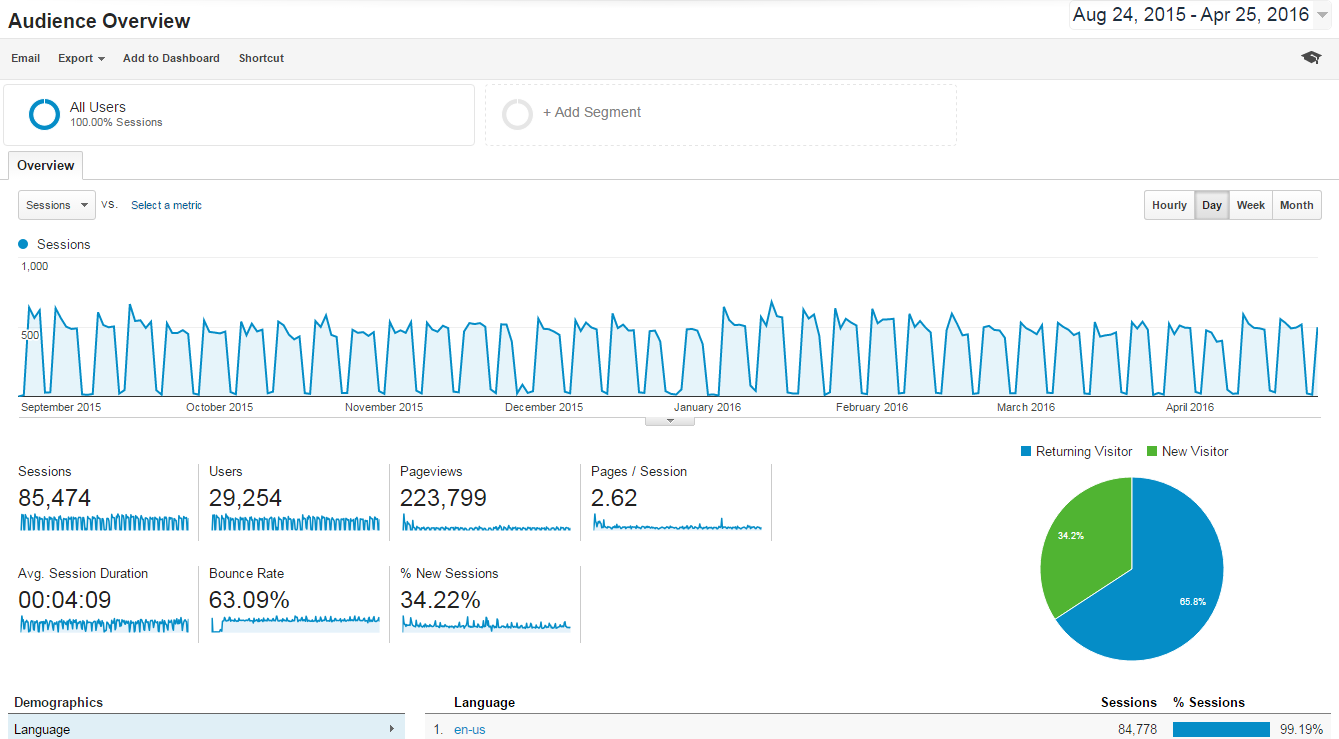
When measuring your intranet, it's important to study these trends. Longer term trends highlight whether your intranet health is improving, or needs attention.
Now that you’ve installed Google Analytics 4 (GA4) onto your site, it can be overwhelming trying to figure out what reports and insights will be most helpful.

In this article, we will give you an overview of what you need to know to get started including the GA4 reports are available and how they can be of use to you.

Note: This article applies to Google Analytics 4 only as this is now the default property that Google prompts organisations to create.

Google Analytics 4 (formerly known as “App + Web”) is a new kind of property, with different reports than what you're used to seeing in Universal Analytics properties. One advantage of a Google Analytics 4 property is that you can use it for a website, an app, or both a website and app together. Universal Analytics properties only support websites.

Overview

When you first log into Analytics, you will be shown this view. You can click on the left-hand panel to switch between reports.

Google Analytics 4 Overview

The default reports shown are:

  • Reports snapshot. Overview or summary of key reports and user data
  • Realtime. This lets you monitor activity on your app or site as it happens
  • Life cycle (aka life cycle collection). These are default reports that tell you how users enter the conversion funnel and how they behave once they’re in the funnel. It include these topics:
    • Acquisition: how you acquire traffic to your site or app
    • Engagement: user engagement by events, pages, and screens
    • Monetisation: revenue by items, promotions, and coupons
    • Retention: retention by new and returning users, cohorts, and lifetime value
  • User (aka user collection). These are default reports that includes these topics:
    • Demographics: categorises your users by age, location, interests, and more
    • Tech: user adoption of app releases and the technologies used to engage your content

Note: An administrator can customise the reports and report navigation to fit your objectives.

Google Analytics Dimensions and Metrics

Every report in Analytics is made up of dimensions and metrics.

Google Analytics 4 Dimensions and Values

This report above ‘Acquisition’ > ‘User Acquisition’ helps you understand how users find your site i.e. what medium they came from such as organic search or email.

For each medium, there is data on:

  • Dimensions. These are attributes of your data. In this scenario, the medium e.g. (none) and organic are the dimensions.
  • Metrics. These are quantitative measurements. In this scenario, ‘New users’ and Engaged sessions’ are the metrics.
  • Values. This is your actual data. Metrics are always expressed by numbers (number values, %, $, time), while dimensions are expressed by non-numerical values. In this scenario ‘organic’ is a dimension value, while ‘28,368’ is the metric value for ‘New users’.

In most Analytics reports, you can change the dimension and/or add a secondary dimension.

1. Click on the plus sign

Google Analytics 4 Secondary Dimensions

2. Choose a secondary dimension

Google Analytics 4 Choose a Secondary Dimensions

3. A secondary dimension will now appear next to the primary dimension. In this example, you can see that organic searches by users who use Windows operating systems were most likely to visit your website.

Google Analytics 4 Secondary Dimensions Example

Google Analytics Terminology 

GA4 has a lot of its own terminology that you may not be familiar with. In many cases, you can simply hover over the term and a definition of the term will appear.

Google Analytics 4 Hover for Information

Source

The origin of your traffic, such as a search engine (for example, google) or a domain (example.com).

Medium

The general category of the source, for example, organic search (organic), cost-per-click paid search (CPC), web referral (referral).

Source/Medium

Source/Medium is a dimension that combines the dimensions Source and Medium. Examples of Source/Medium include google/organic, example.com/referral, and newsletter9-2014/email.

Session

A session initiates when a user either:

  • Opens your app in the foreground
  • Views a page on your website and no session is currently active (e.g. their previous session has timed out)

By default, a session ends (times out) after 30 minutes of user inactivity. There is no limit to how long a session can last. A person who uses the site throughout the day would normally have multiple sessions.

Engaged Sessions

An engaged session is a session that either:

  • lasts 10 seconds or longer
  • had 1 or more conversion events
  • had 2 or more page views

Traffic

Traffic dimensions help you understand how users arrive on your website or mobile app, whether that's from an advertising campaign, referral link, search engine, or another method.

GA4 groups traffic dimensions into the following scopes.

  • User-scoped dimensions
    User-scoped dimensions are dimensions about how you first acquire users on your site or app. Because user-scoped dimensions are about how you first acquire users, the dimensions don't change when users return to your site or app. Analytics uses the words "First user" for user-scoped dimensions, as in "First user source".
  • Session-scoped dimensions
    Session-scoped dimensions are dimensions about what lead a user to start a new session on your site or app. Session-scoped dimensions include new sessions from new and returning users. Analytics includes the word "Session" for session-scoped dimensions, as in "Session source".
  • Event-scoped dimensions
    Event-scoped dimensions are dimensions about what lead a user to start a new session in which they perform a conversion action, such as purchase. Analytics categorizes the source and medium for non-conversion events as "(not set)". Analytics includes only the dimension name for event-scoped dimensions, as in "Source".

User

A person who interacts with an app or site whose activities you measure with Google Analytics.

How to Use Google Analytics Reports

Realtime report

Google Analytics 4 Realtime Report

With Realtime reports, you can immediately and continuously monitor the effects that new campaigns and site changes have on your traffic:

  • See whether a one-day promotion is driving traffic to your site or app
  • Monitor the immediate effects on traffic from a blog/social network post or tweet
  • Monitor whether new and changed content on your site is affecting traffic
  • Verify that the tracking code is working on your site or app 

Engagement Reports

The Engagement topic helps you measure user interactions on your website or mobile app. Engagement includes more than page views and screen views. For example, you can measure when users:

  • check an account balance
  • scroll down a page slowly to indicate reading
  • view product details or spend time on a product page
  • watch an informational video
  • You can use events to track each user interaction.

Engagement Overview

Google Analytics 4 Engagement Overview

This report provides a summary of engagement across your site. Some key data to look at include:

  • Average engagement time, which is the average duration of engaged sessions on your site
  • Engaged sessions per user, which is the number of engaged sessions divided by the number of users
  • Engagement rate overall, which is the number of engaged sessions divided by the number of sessions

User Stickiness

Scrolling down the page, you will see a ‘User stickiness’ panel.

Google Analytics 4 Engagement Overview Stickiness

The ratios above compare engagement over a narrower time frame with engagement over a broader time frame. Higher ratios suggest good engagement and user retention.

  • Daily Active Users (DAU) / Monthly Active Users (MAU)
  • Daily Active Users (DAU) / Weekly Active Users (WAU)
  • Weekly Active Users (WAU) / Monthly Active Users (MAU)

The ratios consist of:

  • Daily Active Users (DAU): the number of active users in the last 24 hours
  • Weekly Active Users (WAU): the number of active users in the last 7 days
  • Monthly Active Users (MAU): the number of active users in the last 30 days

For example, "DAU / MAU" shows the percentage of users who engaged in the last 24 hours out of the users who engaged in the last 30 days.

Events

Events are user interactions with content other than page loads (pageviews). Downloads, link clicks, form submissions, and video plays are all examples of actions you might want to analyse as Events.

Google Analytics 4 Engagement Events Report

An event is a user interaction with your site or app that you specify and collect data about by modifying your tag code as described in the body of this article.

You will need to add an additional tracking code to your site or app to collect Event data. You can find out how to create events here.

Conversions

Google Analytics 4 Engagement Conversions Report

Conversions are user activities that directly contribute to the success of your business. For example, submitting a form or registering for an event.

You measure these activities using conversion events.

Once you trigger conversion events, the Conversions report shows:

  • the number of times users trigger each conversion event
  • the number of users who trigger each conversion event
  • the revenue from each conversion event

This external article can assist you in creating a conversion event.

Pages and Screens

Google Analytics 4 Engagement Pages and Screens Report

The Pages and screens report shows the website pages and app screens that users visit and the number of users on each page or screen.

For websites, the page view is the contents of the <title> tag or the value you send with the screen_name property. For this reason, it is important that you give each page on your site a proper page title that is reflective of the pages content.

For mobile, the screen view is the class name of the UIViewController or Activity in focus.

You can select the downward arrow next to the dimension ‘Page title and screen class’ to choose another option.

Google Analytics 4 Engagement Pages and Screens Change Dimensions

In this report, you can track:

  • Most popular or least popular pages by views
  • The page that is generating the most type of conversion
  • The page that is generating the most type of event
  • Average engagement time on a page
  • The page that is attracting the most or least number of users 

Retention

The Retention topic helps you understand how frequently and for how long users engage with your website or mobile app after their first visit. The topic also helps you understand how valuable users are based on the additional revenue you generate after their first visit.

Google Analytics 4 Retention Report Data

New and Returning users

New users are users who visit your site or app for the first time. Analytics identifies a new user as anyone who doesn't have both a Google Analytics cookie and Client ID from your site or App Instance ID from your app. Users who already have these are returning users.

Cohorts

A cohort is a group of users who share a common characteristic identified by an Analytics dimension. For example, all users with the same Acquisition Date belong to the same cohort. In the Retention topic, new users are part of the same cohort.

User Retention by Cohort

The User retention by cohort chart shows the percentage of new users who return on their second and eighth day. For example, 100 users visit your site on September 9. Ten of the users return on September 10 and two return on September 16. The Day 1 line shows 10% on September 10, while Day 7 shows 2% on September 16.

User Engagement by Cohort

The User engagement by cohort chart shows the average engagement time of new users who return to your site or app on their second and eighth day. Analytics includes only returning users in the average engagement time.

User Retention

This chart shows the percentage of users who return each day in their first 42 days. The chart starts with 100% user retention when all users visit for the first time. It decreases from the first day as users drop off.

User Engagement

The User engagement chart shows the average engagement time of users who return in their first 42 days. Analytics includes only returning users in the average engagement time.

Lifetime Value

The Lifetime value chart illustrates the average revenue from new users over their first 120 days. You can use the chart to determine how valuable users are based on additional revenue you generate. For example, a user purchases a shirt and then purchases pants the following week. Lifetime value (LTV) includes both purchases, indicating the overall success of the acquisition.

Demographics Reports

The Demographics topic helps you classify your users by age, location, language, and gender, along with interests they express through their online browsing and purchase activities. The topic includes interactive charts, diagrams, and tables to help you visualise the data.

Google Analytics 4 Demographics Details Report

Google Signals

We recommend that you activate Google signals to get more holistic demographic and interest data. Google signals is data from users who sign in to Google. When Google signals data is available, Analytics associates event data it collects from users with the Google accounts of users who are signed in and consented (by enabling Ads Personalisation) to share this information.

Location Data

Analytics derives location data from users' IP addresses.

Mobile Apps

For mobile app activity only, Analytics derives demographic and interest data from the following sources:

  • The Android Advertising ID. Analytics generates an identifier based on the ID that includes demographic and interest data derived from users’ app activity.
  • The iOS Identifier for Advertisers (IDFA). Analytics generates an identifier based on the IDFA that includes demographic and interest data derived from users’ app activity.


When the Device Advertising ID is not present, Analytics cannot derive the demographic and interest data. Consequently, demographic and interest data may only be available for a subset of your users, and may not represent the overall composition of your traffic.

Data Thresholds

You must meet the Analytics data thresholds to see demographic and interest data. Google may withhold data to prevent anyone from inferring the identity of individuals based on their demographics and interests. For example, if there are fewer than N instances of Gender=male in a report, then data for the male value may be withheld.

Tech Reports

The Tech topic shows traffic by the technology your audience uses. This data is collected automatically when you connect your website or mobile app with Analytics.

Google Analytics 4 Tech Details Report

How can this report be helpful for you?

Understanding the technologies your audience uses to reach and consume your content lets you fine tune current versions and plan upcoming implementations. For example, you want to be sure your site is fully functional in current browsers, but you also want to understand the extent to which users are migrating away from desktop to mobile browsers and apps.

Platforms and Device Categories

The device category is the type of device your users operate to access your content. Content accessed from:

  • a mobile device, such as an Android or iPhone, is in the mobile device category
  • a desktop device, such as a laptop or desktop computer, is in the desktop device category
  • a tablet device, such as an iPad, is in the tablet device category

The platform is the method by which users access your content. Content accessed from:

  • a web browser, for example Chrome or Safari, comes from the web platform
  • an Android app, comes from the Android platform
  • an iOS app, comes from the iOS platform

Users who visit your website from an Android or iOS device come from the web platform.

Platforms and Data Streams

A data stream is the source of data from an app or website. For each platform, you can collect one or more data streams. For example, a company measures traffic on two websites using one Google Analytics 4 property. Users can access the separate websites using one web platform, but each website generates its own data stream.

FREE GUIDE + CHECKLIST

Want to improve your intranet ROI? Discover how to Improve & Measure Your Intranet Success

Want to improve your intranet ROI? Discover how to Improve & Measure Your Intranet Success

Google Analytics Tips

Here are some advanced tips to help you make the most out of Google Analytics 4.

Consistency is Key

It is likely that you will need to report ‘how well your site is performing’ over time. The reports, dimensions and the metrics you choose to report on will depend on your organisation and goals.

For example, you might use the Acquisition > Traffic Acquisition report. Then use an excel spreadsheet to keep track of ‘Users’, ‘Sessions’ and ‘Average engagement time per session’ for each ‘Source/Medium’. This means you leave out ‘Engaged Sessions’, ‘Engagement Rate’ and other dimensions available in this report.

There is no issue with doing so if these are not important for you. With is important is that you continue to track the same report and the same dimensions in that report over time. This will allow also allow you to see trends.

Comparison by Dates

Another way to track site performance over time is to compare data from two different periods e.g. year-on-year changes or the 6-month period before a site redesign vs the 6-month period after a site redesign.

To do this, you simply need to:

1. Select the dates on the top right hand corner

Google Analytics 4 Comparison by Date - Select Date

2. Select the date range you’re interested in

Google Analytics 4 Comparison by Date - Turn on Comparison

3. Click on ‘Compare’ to turn the option on

4. Select the date range you want to compare your chosen date range to

Google Analytics 4 Comparison by Date - Choose Comparison Period

5. Click ‘Apply.

Comparison by Users

By default, the reports will show you data for all users. In many scenarios, however, it can be helpful to compare segments of users. Across the different reports, Google gives you the option to do this.

Apply comparisons to evaluate subsets of your data side by side, e.g., how users 18-24 compare to your overall user base, or how two different campaigns compare to each other.

For example, you might want to compare data for your Australian users vs worldwide users, users who came from a specific source vs another source, and so on.

1. Click on ‘Add comparison’

Google Analytics 4 Comparison by User - Select Add Comparison

A panel will appear on the right-hand side called ‘Build comparison’

2. Specify the dimension you want to compare

Google Analytics 4 Comparison by User - Select Dimension

3. Specify the dimension value you’re interested in

Google Analytics 4 Comparison by User - Select Dimension Value

You have the option to add up to 5 separate conditions. For example, if I wanted to track Australian users who came to my site from clicking on a marketing email I sent them, I would create 2 conditions Country = Australia AND Source = Email.

Google Analytics 4 Comparison by User - Add Additional Comparisons

4, Click ‘Apply’

You can now see your comparison has been applied. From here you have the option to add another comparison, as well as remove ‘all users’ so you no longer see data for all users.

For example, if I wanted to compare Australian users who came to my site from clicking on a marketing email, I sent them with United States users who came to my site from clicking on a marketing email I sent them then I would create a new comparison and select Country = United States AND Source = Email.

When you view a different report, the comparison you specified is applied:

Google Analytics 4 Comparison by User - Across Reports

If you would like to remove a comparison, simply click on the x. If there are no comparisons left, the Google will show the default comparison ‘All users’.

Your Turn

Which intranet reports do you use to measure your engagement? And are there any new aspects of intranet ROI that you are interested in incorporating into your intranet report?

Explore further ways you can assess and integrate the data of your intranet report with our guide on 'Measuring and Improving Intranet Success'.


 Measure and Improve Intranet Success - Blog Banner

FREE GUIDE + CHECKLIST

How to Measure & Improve Intranet Success

In this guide, you will find actionable insights to effectively perform an intranet health check and improve its overall success.

Plus access a ready-to-use measurement checklist with customisable KPIs.

Get insights

Keep reading

What You Need to Know About Measuring Your Intranet What You Need to Know About Measuring Your Intranet

Here's what you need to know about measuring your intranet to ensure it continues meeting the evolving needs of your staff and organisation.

How to Evaluate Intranet ROI How to Evaluate Intranet ROI

Wondering if your intranet has delivered ROI? It's essential to choose the right metrics and methods for your business when calculating intranet ROI.

8 Smart Ways to Measure Intranet Effectiveness 8 Smart Ways to Measure Intranet Effectiveness

Gathering accurate intranet metrics is essential to maximising the ROI on intranet adoption. Learn how to measure intranet effectiveness.

Intranet Health Check Insights Intranet Health Check Insights

When performing an intranet health check, following these steps will ensure the best results.

Scroll to top